

I’ve been playing Lightnite since the alpha days and I can tell you right now that outdated software kills your game.
You’re here because you need to update your Lightnite One and you want it done right. Maybe your game is lagging. Maybe you’re missing new features everyone else has. Or maybe you just got a notification and you’re not sure what to do next.
Here’s the thing: a bad update can mess up your whole system. But skipping updates? That’s even worse.
Your Lightnite One needs current software to run smooth. Old versions mean security holes, performance issues, and you’re locked out of the latest battle royale features.
I’ve walked through every single Lightnite update over the years. I know what works and what breaks things.
This guide shows you exactly how to update your Lightnite One the right way. I’ll cover automatic updates and manual methods. And if something goes wrong, I’ll show you how to fix it.
You’ll be back in the game faster than waiting in a lobby queue.
No fluff. Just the steps you need to get your software current and your gameplay running perfect.
Why Updating Your Lightnite One is Non-Negotiable
You boot up the game and wonder why everything feels off.
Your shots aren’t landing right. The game stutters at the worst moments. And when you try to join your friends, you can’t even connect.
Here’s what’s probably happening. You’re running an old version.
Some players say updates don’t matter that much. They argue that if the game works, why bother downloading a bunch of files? Just play what you have.
But that thinking will cost you.
Performance gets better with every update. I’m talking about smoother frame rates and fewer crashes. Those annoying bugs that make you lose fights? Most of them get fixed in patches. When you skip updates, you’re playing a worse version of the game on purpose.
Then there’s the content problem.
New maps, weapons, and skins only come through updates. Limited-time events? You can’t even see them if you’re running old software. You’re literally locked out of half the game (and trust me, that’s where the fun stuff happens).
But here’s the part that really matters.
Security patches protect your account. Every update includes fixes for vulnerabilities that hackers find. Your personal info and in-game assets are sitting ducks without these patches. I’ve seen players lose everything because they ignored a simple update.
And if you play multiplayer? You won’t be able to connect at all. Servers require the latest version. Your friends will be playing while you’re stuck staring at an error message.
Learning how to update lightniteone takes about five minutes. The game usually does it automatically when you launch it. Just don’t skip it.
Your choice is simple. Update and play the best version of Lightniteone. Or don’t and watch everyone else have a better experience.
The Easiest Method: Enabling Automatic Updates
Let me show you the simplest way to keep Lightnite One current.
Automatic updates.
You set it up once and you’re done. No more checking for patches. No more wondering if you’re running an old version while everyone else got the new features.
Here’s what you get. Your game stays current without you lifting a finger. Bug fixes install themselves. New content shows up when you boot up. You spend less time in menus and more time playing. With the seamless updates of Lightniteone, players can dive straight into action, enjoying a continually fresh gaming experience without the hassle of manual installations. With the seamless updates of Lightniteone, players can dive straight into action, enjoying a continually evolving experience that keeps the thrill of gameplay alive without the hassle of manual updates.
For PC Players
If you want to know how to update lightniteone, this is your answer.
- Open the Gamefront launcher
- Click the Settings icon (it’s the gear in the top right)
- Find the Updates tab
- Toggle on “Automatic Updates”
- Choose “Download and Install Automatically”
That’s it. You’re set.
For Console Players
PlayStation users, here’s your path. Game Lightniteone picks up right where this leaves off.
- Go to Settings from your home screen
- Select System
- Choose Automatic Downloads and Uploads
- Turn on “Game Update Files”
Xbox players, yours is just as easy.
- Press the Xbox button to open the guide
- Go to Profile & System
- Select Settings
- Choose System, then Updates
- Check “Keep my games & apps up to date”
Pro Tip: Turn on rest mode for PlayStation or instant-on for Xbox. Your console will download lightniteone version on pc updates while you sleep. You wake up and everything’s ready to go.
No waiting. No download bars when you just want to play.
How to Manually Update Lightnite One (When Auto-Update Fails)
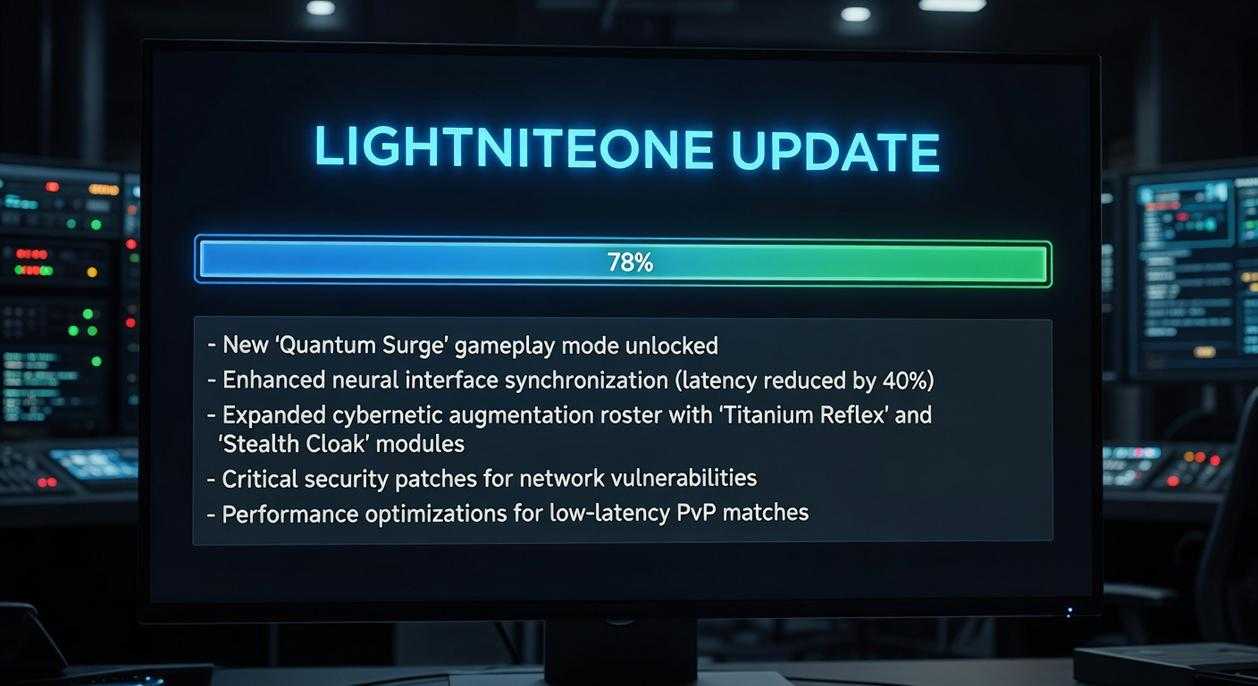
Auto-updates are supposed to just work.
But sometimes they don’t.
Your download gets stuck at 47%. Or a new hotfix drops and your launcher acts like nothing happened. Maybe you just installed the game and it’s sitting on an old version.
I’ve been there. Staring at a loading bar that hasn’t moved in twenty minutes.
Some people say you should just wait it out. Let the system do its thing. Don’t mess with the process because you might break something.
And sure, patience works sometimes.
But here’s what they’re missing. When an update fails, waiting doesn’t fix the problem. You’re just wasting time while everyone else is already playing the patched version.
The good news? You can force the update yourself. It takes about two minutes once you know how to update lightniteone manually.
Let me walk you through it.
When You Need to Force an Update
You’ll know it’s time to update manually when you see these situations:
- Your download freezes or gets stuck
- A hotfix released but your launcher doesn’t show it
- You just installed the game and it’s running an older build
PC Update (Gamefront Launcher)
Here’s the exact process:
1. Close Gamefront completely. Don’t just minimize it. Check your system tray (that’s the bottom right corner of your screen near the clock) and make sure it’s not running in the background.
2. Right-click the Gamefront icon and select “Run as administrator.” This gives the launcher full permission to make changes.
3. Go to your library, find Lightnite One, and click “Check for Updates.”
The launcher will scan for the latest version and start downloading if there’s something new.
Console Updates
PlayStation: Highlight the Lightnite One icon on your home screen. Press the Options button on your controller. Select “Check for Update” from the menu.
Xbox: Press the Menu button while hovering over Lightnite One. Choose “Manage game and add-ons.” Select “Updates” and the console will check for new patches. To ensure you’re playing the latest features and improvements, don’t forget to regularly check for updates on your Xbox and consider players’ recommendations to Download Lightniteone Version on Pc for a potentially enhanced gaming experience. To fully enjoy the latest features and improvements that come with the game, players should not only keep their Xbox updated but also consider those who wish to Download Lightniteone Version on Pc for a seamless gaming experience.
(Console updates usually download in the background, but this forces the system to look right now instead of waiting.)
Checking Your Version Number
You need to confirm the update actually worked.
Launch Lightnite One and go to the main menu. Look for Settings or Options. The version number usually appears in the bottom corner of the settings screen or on the main menu itself.
Compare that number to the latest version listed on the official lightniteone new version for pc page. If they match, you’re good to go.
If they don’t match? Run through the update process one more time.
Pro tip: Write down your version number before you start the update. Makes it easier to tell if anything changed.
Troubleshooting Common Update Problems
You hit the update button and now you’re stuck staring at a progress bar that won’t move.
Or maybe you got an error message that makes zero sense.
I see these issues pop up all the time when players try to update their games. The good news? Most of them are pretty easy to fix once you know what to do.
Let me walk you through the most common problems and how to solve them fast.
When Your Update Gets Stuck
Your download hits 47% and just sits there. Or it’s crawling so slow you’ll be waiting until next week.
Here’s what I do first.
Pause the download and restart it. Sometimes that’s all it takes. If that doesn’t work, run a quick speed test on your internet connection. You might find the problem isn’t the game at all.
For PC players using the launcher, you can clear the download cache. Go to settings, find the downloads tab, and look for the clear cache option. It takes about 30 seconds and fixes stuck downloads more often than you’d think. I go into much more detail on this in When Lightniteone Releases.
Not Enough Space Error
This one’s straightforward but annoying.
Check how much storage you have left. On PC, open your drive properties. On console, go to your system storage settings.
If you’re running low, delete some old games you don’t play anymore. You can also move the game to a different drive with more room. (I keep a separate drive just for games that get frequent updates.)
Corrupted Update File
This error sounds scary but it’s usually not a big deal.
On PC with the Gamefront launcher, right click the game and select “Verify Integrity of Game Files.” The launcher will check everything and redownload any corrupted pieces. Takes a few minutes but it works.
Console players have it tougher. If you get this error, you might need to delete and reinstall the whole game. I know that’s a pain, but it’s the most reliable fix when you’re dealing with corrupted files.
Pro Tip: Before you try anything complicated, just restart your PC or console completely. Not sleep mode. A full shutdown and restart. You’d be surprised how many update problems this fixes. It clears out temporary glitches that mess with downloads and installations. If you’re encountering issues while trying to download the Lightniteone New Version for Pc, remember that a complete shutdown and restart of your system can often resolve those pesky glitches that hinder updates. If you’re having trouble downloading the Lightniteone New Version for Pc, a complete restart of your system might just be the simple solution you need to resolve those pesky update issues.
When you’re figuring out how to update lightniteone, these solutions handle about 90% of the problems you’ll run into.
Still stuck? Check your firewall settings. Sometimes security software blocks game updates without telling you.
You’re Updated and Ready for Battle
You came here to fix your update problems.
Now you know exactly how to update lightniteone without the headaches. No more sitting in queues while everyone else is playing.
I get it. There’s nothing worse than wanting to jump into a match and getting hit with an error message. Or watching that download bar crawl along at 2% while your squad is already dropping in.
The automatic updates handle most of the work for you. But when things go sideways, you’ve got the manual steps and troubleshooting fixes to get back in the game fast.
You’re in control now. Your software stays current and your performance stays sharp.
Here’s what to do next: Fire up Lightnite One and test everything out. Then check out our guide on the new season’s battle royale mechanics. You’ve got the technical side locked down, so now it’s time to get that competitive edge.
Your game is patched. Your system is ready.
Time to play.
 There is a specific skill involved in explaining something clearly — one that is completely separate from actually knowing the subject. Kaelith Kryndalla has both. They has spent years working with leveling and power-up tips in a hands-on capacity, and an equal amount of time figuring out how to translate that experience into writing that people with different backgrounds can actually absorb and use.
Kaelith tends to approach complex subjects — Leveling and Power-Up Tips, Gamefront News, Multiplayer Tactics and Modes being good examples — by starting with what the reader already knows, then building outward from there rather than dropping them in the deep end. It sounds like a small thing. In practice it makes a significant difference in whether someone finishes the article or abandons it halfway through. They is also good at knowing when to stop — a surprisingly underrated skill. Some writers bury useful information under so many caveats and qualifications that the point disappears. Kaelith knows where the point is and gets there without too many detours.
The practical effect of all this is that people who read Kaelith's work tend to come away actually capable of doing something with it. Not just vaguely informed — actually capable. For a writer working in leveling and power-up tips, that is probably the best possible outcome, and it's the standard Kaelith holds they's own work to.
There is a specific skill involved in explaining something clearly — one that is completely separate from actually knowing the subject. Kaelith Kryndalla has both. They has spent years working with leveling and power-up tips in a hands-on capacity, and an equal amount of time figuring out how to translate that experience into writing that people with different backgrounds can actually absorb and use.
Kaelith tends to approach complex subjects — Leveling and Power-Up Tips, Gamefront News, Multiplayer Tactics and Modes being good examples — by starting with what the reader already knows, then building outward from there rather than dropping them in the deep end. It sounds like a small thing. In practice it makes a significant difference in whether someone finishes the article or abandons it halfway through. They is also good at knowing when to stop — a surprisingly underrated skill. Some writers bury useful information under so many caveats and qualifications that the point disappears. Kaelith knows where the point is and gets there without too many detours.
The practical effect of all this is that people who read Kaelith's work tend to come away actually capable of doing something with it. Not just vaguely informed — actually capable. For a writer working in leveling and power-up tips, that is probably the best possible outcome, and it's the standard Kaelith holds they's own work to.